Individual Report
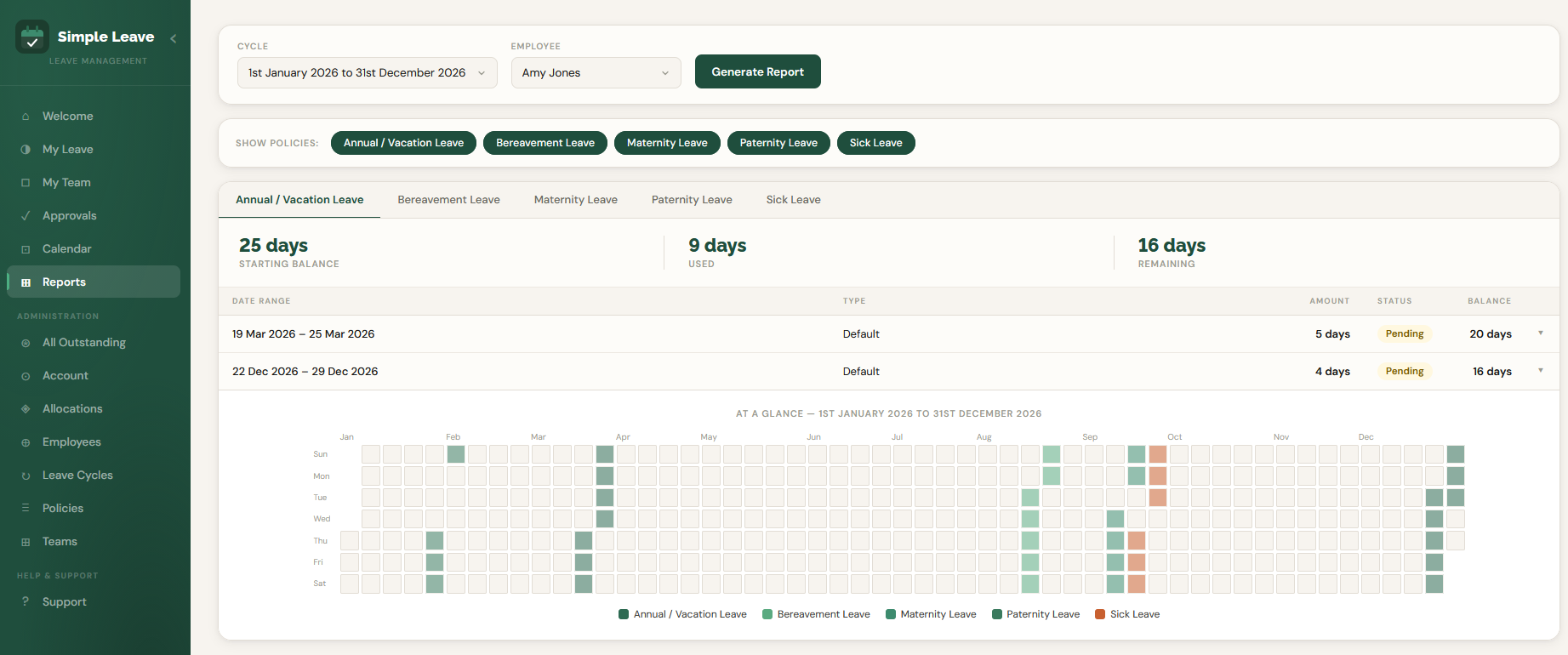
The Individual Report gives you a complete picture of one employee's leave for a chosen cycle — their balance for each policy, a full history of requests, and a visual "at a glance" calendar of when they've been off.
Who Can View This Report
- Administrators can generate a report for any employee in the organisation.
- Managers can generate a report for themselves and their direct reports.
- Employees without admin or manager access cannot view this report.
Generating a Report
- Select the Cycle you want to report on.
- Select the Employee.
- Click Generate Report.
Reading the Summary
The report is laid out as a document. It opens with a Summary table covering every policy at once — allowance, accrued, used and remaining side by side — then a section for each policy down the page.
Each policy section shows three headline figures:
- Starting Balance — what the employee had available at the start of the cycle.
- Used — how much has been taken so far (includes both pending and approved requests).
- Remaining — what's left.
For policies configured as Keep Count rather than Track Entitlement, there's no balance to track, so only the amount used is shown.
Request History
Below the summary is a full list of the employee's leave requests for that policy, in date order, showing:
- The date range and leave type
- The amount requested
- Its status — Pending, Approved, or Denied
- The employee's running balance immediately after that request
Because the balance updates request-by-request, this table doubles as an audit trail — you can see exactly how an employee's balance reached its current figure.
Settings
Use the Settings button to change what the report shows:
- Show comments — the employee's note and the approver's comment on each request.
- Show daily breakdown — the individual dates behind each request, where half days become visible.
- Include heatmap — the calendar below.
- Policies to include — leave out any policies you don't need.
Your choices are remembered for next time, and they carry through to the Excel export.
Exporting
Click Download .xlsx to take the report into Excel — a summary sheet, every request on one filterable sheet, and a sheet per policy. See Exporting to Excel.
Print gives you exactly what's on screen — so what you've chosen to show, and what you've filtered out, is what comes out. Use your browser's print dialog to Save as PDF for something to attach to an email or keep on file, or send it straight to a printer for a physical copy.
To produce this report for several employees in one go, see Bulk Individual Reports.
At a Glance — the Leave Heatmap
Underneath the request history is a calendar-style heatmap covering the whole cycle, giving you a quick visual summary of when the employee has taken leave:
- Each coloured cell is a day the employee was off, coloured by leave type (see the legend underneath).
- Days with a pending request are shown at reduced opacity, so approved leave stands out as the confirmed picture.
- Hover over any cell for the exact date, leave type and status.
Related Pages
- Bulk Individual Reports — run this report for several employees at once.
- Exporting to Excel — what's on each sheet of the download.
- Top Level Report — see every employee's balances side by side.
- Managing Allocations — how an employee's starting balance is set.
- Reviewing Leave Requests — approve or deny pending requests.